Check if an item is restricted
The required fields for checking item restrictions are the ship-from and ship-to countries, and items with an HS code. Providing optional item details such as name, description, materials, category, and brand can improve the accuracy and confidence of results.
To determine if an item is subject to a restriction, follow the steps below for both Dashboard and API requests.
- Go to Dashboard -> Products -> Restrict.
- Click Check restriction.
- Select the required Ship from country and Ship to country.
- Enter the HS code or use Classify to retrieve it by describing the item in the Item description (optional) field.
- Select the Country of origin.
- Click Start check.
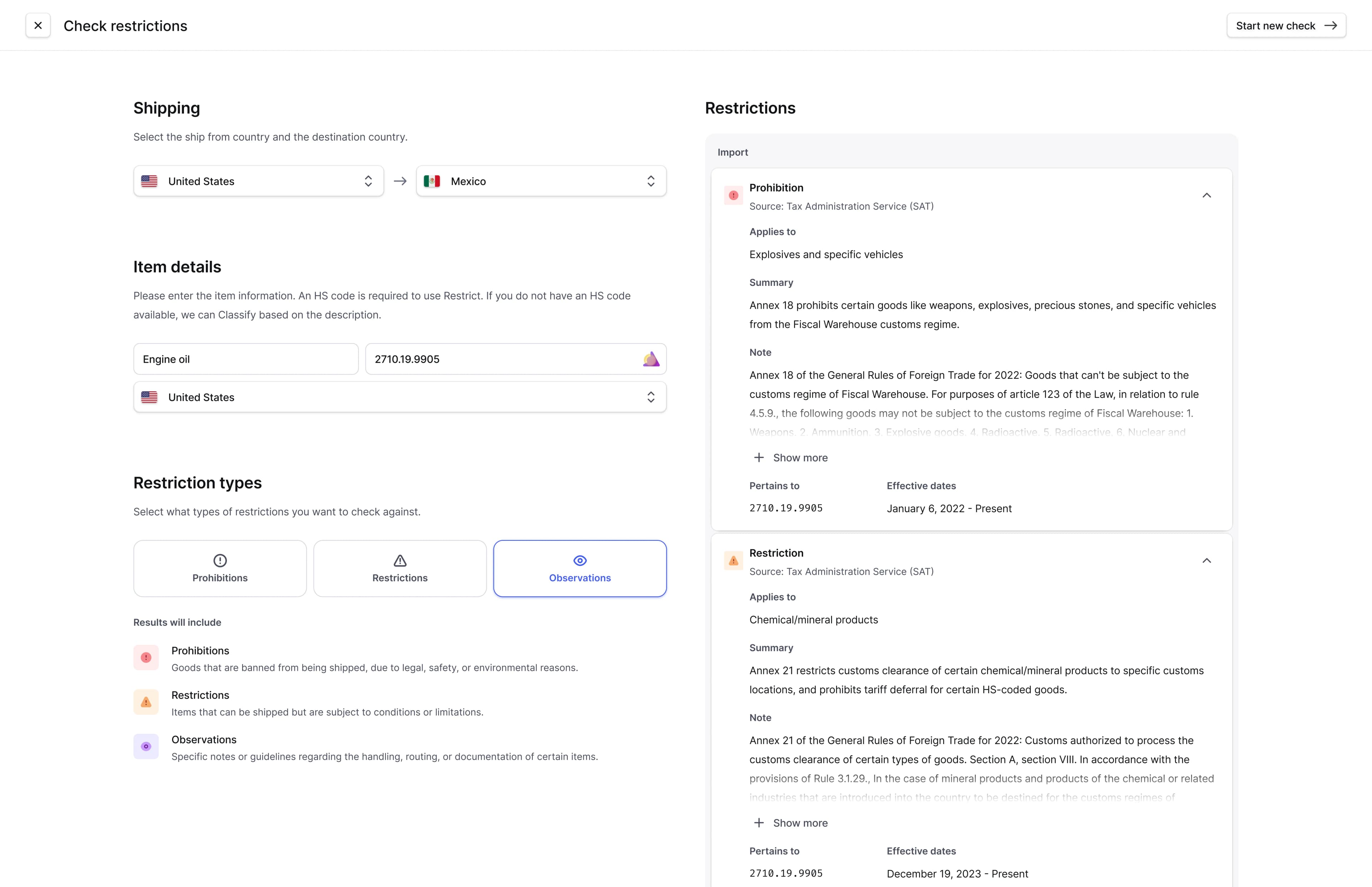
- View your results. If any restrictions are found, each will include a Summary of the restriction, the HS code it Pertains to, and Effective dates, if applicable.
Note: To use an existing restriction request as a template for a new one, click on any existing request and then click Use as template in the top right corner. You can then make edits and submit a new request for a restriction check.
Here's an example of a restriction results page:
GraphQL API ReferenceTypes, inputs, and operations used in this guide
INPUTS
MUTATIONS
Check for restrictions
Check for item restrictions with Restrict.
Restrict provides flexible solutions to meet your needs, whether you're checking a single item or managing bulk requests. The API supports both individual and bulk restriction checks, while Dashboard is currently designed for single-item checks. This guide will walk you through how to perform restriction checks via API (for both single and bulk requests) and Dashboard (for single-item requests).